Free Blur Video Template By CapCut
Create a stunning blur video template in seconds. Easily customize professional motion blur, bokeh, and focus effects for your clips. Get started free with CapCut!
More Templates

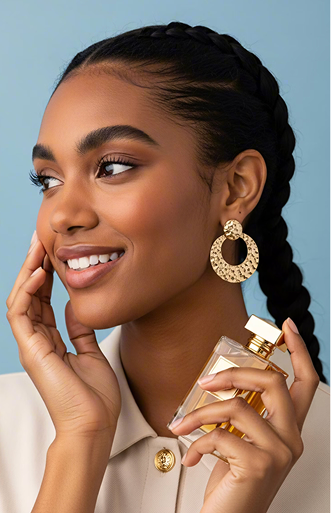
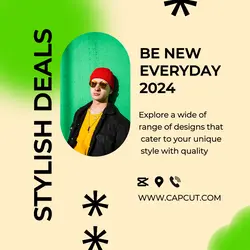
Blur Fashion Template for Men
Youtube Thumbnail Reaction Video

Street Style Ending Video
Video Reaction YouTube Thumbnail
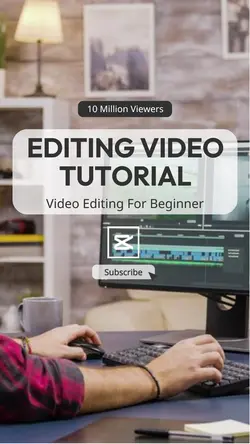
Editing Video Tutorial Youtube Thumbnail

Youtube Thumbnail - Most Shocking Video
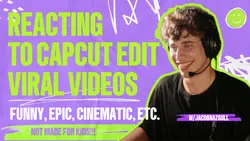
Viral Video Reaction Youtube Thumbnail

Entertainment Online video platform Display Dark

Finance Video YouTube Thumbnail - Learning

Lyric Video Cover YouTube Thumbnail - Reaction

Entertainment Video platform Forecast Cute

Skincare Routine Video Thumbnail - Vlog

How To Video YouTube Thumbnail - Learning

Business Video Editing Online Course Ads

Auto parts Video Publicity Simple

Learning Video Youtube Thumbnail Simple Elegant

Dressing Rules Video Thumbnail - Vlog

Non-marketing Youtube Endscreen Girls Vlog Video

Business Hiring Video Editor Instagram Post

Youtube Endscreen template
1
Hot Templates
302 4K VideoNew Template 2026 ProNew VideosTemplate By CbpngVideo ClipFree TemplatesNew Trending 2027Templates For PhotosPhoto Templates4K Video Editing 2026Rajan TemplateNew Templates 2026Filter Template302 4K NewAesthetic TemplatesBlack TemplatePng Latest Templates 20264K QualityNew Template 2026 Sad1 Clip Video TemplateTemplates 2026Free Video Without Watermark3 Clips Video TemplateTemplate SeenEdit TemplateNew Free Templates302 4K 2026 VideoEdit 2026New Video 2026Full Hd Video DownloadKeying TemplatePhoto Edit Trending 2026Pc Template VideoBlur EffectVideo 2026Arabic TemplateVideo BlurOnline Templates1 Video ClipSimple TemplateCute Templates4 Clips Video TemplateZoom Animation EffectsLong Video TemplateLoading Template80S Template TrendNew Filter 202730 Second Video TemplatePaper Display
About blur video template
Instantly elevate your projects with a professional blur video template from CapCut. This versatile tool is perfect for adding a cinematic, mysterious, or focused effect to any scene, making it ideal for a wide range of uses, from social media stories to business presentations and many other creative endeavors. Unlike complex software, our templates offer high-quality blur effects that are incredibly easy to customize. You can adjust the intensity, style, and placement of the blur to perfectly match your vision without any technical expertise. Whether you're highlighting a subject, creating a dreamy background, or adding artistic flair to other miscellaneous clips, you'll achieve a polished look in minutes. Dive in and explore our collection to find the perfect template for your next video. Start browsing now and see how simple professional video editing can be.
Decide what the blur should do before choosing a template
This collection includes Velocity, blur effect, Blur aesthetic, Blur + Slowmo, background slow-motion, and halo-style previews. A blur video template can direct attention, soften a background, or connect a speed change, but those are different jobs. Start by deciding what should stay sharp and what the viewer is allowed to miss.
Separate intentional blur from a blurry source
An effect works best when the main subject is already recognizable. Use footage with a reasonably clear face, object, or silhouette, then let the template soften movement or background detail around it. If the original file is out of focus, low-resolution, or smeared by fast camera motion, another layer of blur may remove the last useful detail rather than create an aesthetic.
For Blur + Slowmo or velocity edits, choose a clip with one obvious movement and enough frames around it. A hand cover, turn, step, or camera move can give the transition a natural place to happen.
Check the focal point after every crop
Reframing can move the subject away from the sharp area or place text over the only clear detail. Preview at phone size and inspect eyes, product edges, and the boundary between the subject and background. If everything looks equally soft, try a different crop or a template with a quieter blur treatment.
The blur should help the viewer notice the intended moment. Finish by watching once without sound; the subject and movement should still be understandable even when the music is removed.
FAQs
Q: What is the difference between a blur effect and an out-of-focus clip?
A: A blur effect is added deliberately while a chosen subject or moment remains readable. An out-of-focus source lacks clear detail before editing begins. Templates can stylize useful footage, but they cannot reliably restore eyes, text, or object edges that were never captured clearly.
Q: Which subject should remain sharp in a blur aesthetic edit?
A: Keep the detail that explains the clip sharp: usually a face, product, hand action, or central object. The background and fast movement can carry more softness. If the viewer cannot tell where to look, the blur is no longer directing attention.
Q: What movement works with Blur + Slowmo?
A: Use a turn, step, hair movement, hand cover, reveal, or controlled camera move with a clear beginning and end. Leave a small amount of footage around the action. Random shake rarely becomes smoother simply because blur and slow motion are added.
Q: Can I add text over a blurred background?
A: Yes, if the text sits in a visually quiet area and has enough contrast. Keep it away from the sharp subject and avoid long sentences during fast cuts. Check the result at phone size because thin lettering may disappear against moving blur.
Q: Why does the subject move outside the clear area after replacement?
A: The source clip may use a different framing or motion path from the template preview. Reposition or crop the media, then check the full action rather than one frame. If the subject repeatedly leaves the focal area, choose a layout with broader focus.
Q: How can I tell whether a halo blur is too strong?
A: Look at facial features, object edges, and highlights around the subject. A halo can add separation, but it should not create a distracting bright outline or erase small details. Compare the preview at normal phone brightness before deciding to keep it.
Q: What should I review before completing a blur template video?
A: Review the focal point, crop, text contrast, speed change, and the final frame. Watch once without sound and pause at the strongest moment. If the subject is still recognizable and the blur supports the movement, the treatment is doing useful work.