Free Before And After Video Transition Templates By CapCut
Create a stunning before and after video transition instantly. Use CapCut's free templates to showcase transformations, reveals, and makeovers. Easy to customize!
More Templates


479K
GLOW UP TREND

212.4K
I went from this..

178K
before, after makeup

47.3K
BEFORE VS AFTER

45.8K
Doom shop 🔥

39.4K
Before after brows

36.6K
Room Transformation

28.9K
BEFORE & AFTER 🎩

26.8K
Flipped the switc

25.8K
Glow up??🤭

24.4K
Before and after

20K
Before after brows

18.8K
Before and after

16.1K
Before after mask
9.3K
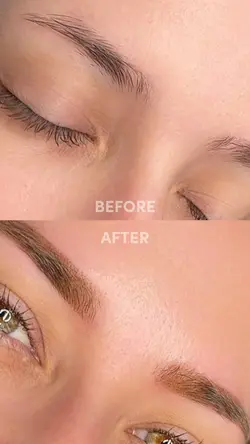
Before After Brows

6K
Before and afte

5.8K
Before/after

233
Construction Glow

103
Transformation

15
Chair Glow Up
1
Hot Templates
302 4K VideoNew Template 2026 ProNew VideosTemplate By CbpngVideo ClipFree TemplatesNew Trending 2027Templates For PhotosPhoto Templates4K Video Editing 2026Rajan TemplateNew Templates 2026Filter Template302 4K NewAesthetic TemplatesBlack TemplatePng Latest Templates 2026New Template 2026 Sad4K Quality1 Clip Video TemplateTemplates 20263 Clips Video TemplateFree Video Without WatermarkTemplate SeenBlur Video TemplateEdit TemplateNew Free Templates302 4K 2026 VideoNew Video 2026Edit 2026Full Hd Video DownloadKeying TemplatePhoto Edit Trending 2026Video 2026Pc Template VideoBlur EffectArabic TemplateVideo BlurOnline TemplatesNew Filter 2027Simple TemplateCute Templates1 Video Clip4 Clips Video TemplateLong Video TemplateZoom Animation EffectsLoading Template80S Template Trend30 Second Video TemplatePaper Display
About before and after video transition
Showcase incredible transformations with a professional before and after video transition. These templates are designed to make your reveals impactful, whether you're highlighting a home renovation, a fitness journey, or a creative project. Forget complex editing; CapCut makes it easy. Perfect for your social media feed, these templates help you create engaging content that grabs attention. Each design is fully customizable, allowing you to match your brand's aesthetic and tell your story effectively. You can adjust timing, add text overlays, and choose the perfect music to build anticipation for the big reveal. With a library of options at your fingertips, you'll find the ideal effect to make your 'after' moment truly shine. Start browsing now to find your perfect transition.
Make a before and after video transition easy to compare
The page includes GLOWUP, hair, makeup, barbershop, nails, prom, and other reveal templates. The transition is most useful when the viewer can immediately understand what changed. Comparable framing and a clear before state matter more than a complicated effect.
Record the two sides with a shared reference
Keep the person or object in a similar position, use a related camera angle, and avoid a major lighting change unless lighting is part of the transformation. For hair, makeup, nails, or clothing, give the viewer enough time to see the first state before the reveal. A hand cover, turn, step, or matched movement can connect the clips naturally.
If the transformation happened over time, add a short date or label only when it helps explain the comparison. Do not cover the changed area with text.
Give the after moment room to land
The reveal should not disappear immediately after the transition. Hold the final result long enough to see the detail, then use a close-up or second angle only if it adds information. Preview the before and after at phone size and check that the difference remains visible without relying on a long caption.
FAQs
Q: How should I film the before and after clips?
A: Use a similar camera position, subject distance, and body or object placement. Keep a shared visual reference so the change is easy to compare. If the angle and framing are completely different, the transition may hide the result instead of showing it.
Q: What movement can connect the before and after shots?
A: Use a turn, step, hand cover, camera cover, hair movement, or another action that can be repeated in both clips. Match the direction and timing as closely as practical. A clear repeated motion usually feels more natural than an unrelated transition effect.
Q: How long should the before shot stay on screen?
A: Keep it visible long enough for the viewer to understand the starting state once, without making the reveal feel delayed. Detailed changes such as hair, makeup, nails, or a room may need a little more time than a simple outfit change.
Q: Should the lighting be the same in both clips?
A: Similar lighting makes the comparison easier to judge. A deliberate lighting change can be part of a reveal, but it should not be the only visible difference if the video is meant to show hair, makeup, a product, or another real change.
Q: Can I show more than two stages in a before and after template?
A: Yes, if the selected layout has room for progress stages. Keep the order chronological and label stages only when the change is not obvious. If several steps become too small or fast to understand, use a longer sequence rather than forcing them into one transition.
Q: Where should I place text in a transformation video?
A: Keep labels away from the area that changed, such as hair, face, nails, clothing, or the product surface. Use short terms like Before, After, or a date when needed. The comparison should remain understandable even if the viewer ignores the caption.
Q: What should I check before exporting a before and after video?
A: Compare framing, subject position, lighting, transition timing, and the hold on the final result. Make sure the changed area stays visible and is not covered by text. Watch once without sound to confirm that the transformation reads clearly on its own.